 ES
ES  EN
EN  FR
FR 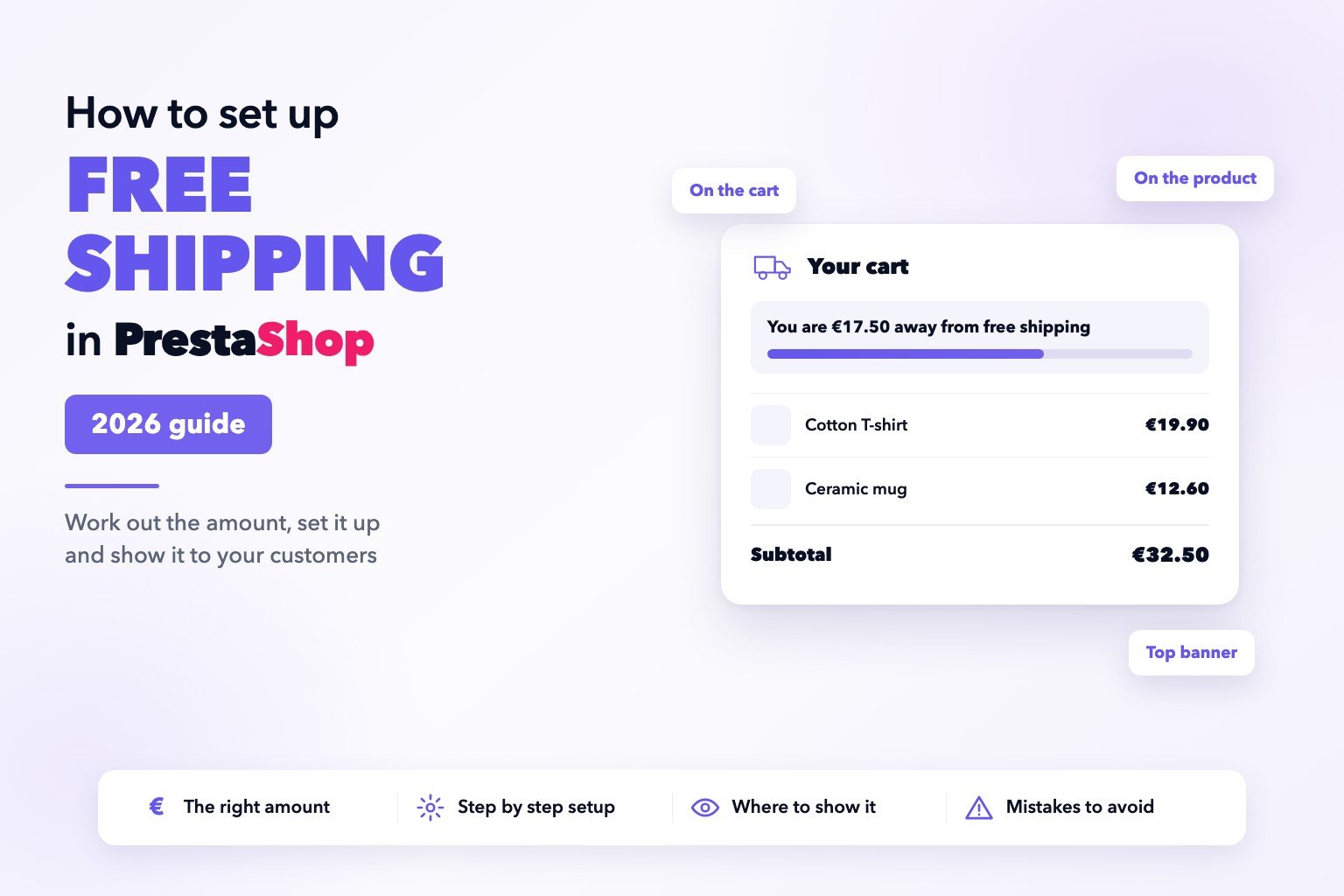
Free shipping does nothing if the customer never finds out about it
Almost every PrestaShop shop has an amount above which shipping is free. Almost none of them tell the customer at the moment it matters.
The figure lives on the shipping terms page, in a footer dropdown, or on a home page banner nobody remembers. When the customer reaches the cart with €32 and was €18 short of free shipping, nothing says so. So they pay for shipping, or they leave.
This guide covers the three parts of it: what amount to set, how to configure it in PrestaShop, and where to show it so that it actually does something.
1. What amount to set
The expensive mistake is picking the number by feel. Set it too low and you give away shipping on orders you were closing anyway. Set it too high and the customer sees it as out of reach and does not even try.
A sensible starting point is 15–30% above your average order value: enough that they have to add something, not so much that it looks impossible.
Starting point
free shipping amount = your average order × 1.15 … 1.30
How it works out at different order values
| Your average order | Sensible amount | What the customer has to do |
|---|---|---|
| €28 | €35 | Add one small product |
| €45 | €55 | Add a product, or increase a quantity |
| €120 | €140 | Nearly reaches it on its own |
Check the numbers add up
Your margin on an order at that amount has to cover what shipping costs you. If shipping costs you €5.90 and your margin on a €35 order is €6, you are working for free. Raise the amount until the order is still profitable with shipping paid.
2. How to set it up in PrestaShop
This part is built into PrestaShop. You do not need a module to remove the shipping cost.
3. Where to show it to the customer
This is where the effect is won or lost. The discount already works; what is missing is the customer finding out in time.
On the cart page
The one you cannot skip. It is where they see the total and where they decide. A bar telling them how much is left, updating itself as they add products, turns an abstract figure into a concrete target.
On the product page
Earlier still: while they are choosing what to buy. It has to sit next to the buy button. Many themes only leave room at the bottom of the page, under the related products, and nobody sees it there.
As a top banner
For the visitor who just arrived and has no idea the offer exists. Less precise than the other two, but it reaches everyone.
Four mistakes that keep coming up
Counting shipping inside the total
PrestaShop compares the product total, without shipping costs. If your site shows a total with shipping already added, you are telling the customer they have arrived when they are still a few euros short.
What to do
Always compare the product total, shipping excluded.
Getting tangled up in taxes
PrestaShop decides free shipping using the total including taxes. If you are B2B and show prices excluding VAT, the number the customer sees and the one PrestaShop uses are not the same.
What to do
Build a test cart and see at exactly what amount shipping drops to zero.
Only showing it on the terms page
Nobody reads it. If the only place that says “free shipping from €50” is a legal page linked in the footer, that offer does not exist as far as the customer is concerned.
What to do
Put it where the decision happens: cart and product page.
Stating the threshold instead of what is left
“Free shipping from €50” is a fact. “You are €17.50 away” is an instruction. The second works much better, because the customer does not have to stop and do the maths.
What to do
Show the remaining amount, not the threshold.
In short
Setting the amount takes a minute in the back office. What actually moves the numbers is the second part: the customer seeing it, where they are already looking, and while they can still do something about it.
PrestaTools Pro
FreeShip Bar: the bar that tells customers how much is left
A progress bar that updates by itself as products are added or removed. It goes on the cart, on the product page next to the buy button, and as a top banner. It reuses the amount you already have in PrestaShop, so the two figures can never disagree.

¿Buscas módulos PrestaShop que no fallen cuando tu tienda crece?
En PrestaTools desarrollamos módulos pensados para entornos reales. Código limpio, sin impacto en velocidad y soporte técnico directo.
Ver catálogo de módulos →Artículos relacionados

Found it useful? Share it:
